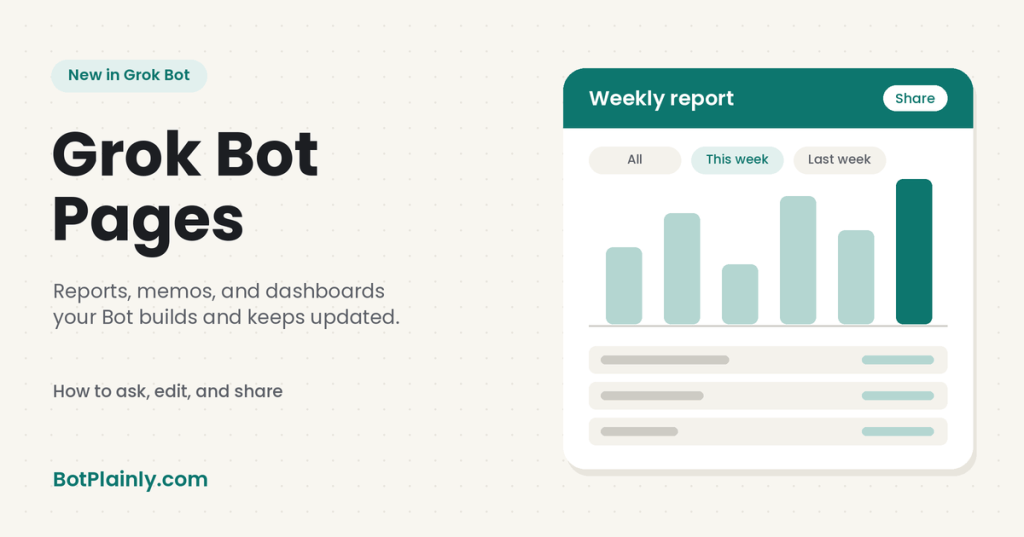
Short answer: Grok Bot can now build Pages: reports, memos, dashboards, trackers, and explainers you can open, read, and share. To get one, just ask your Bot in chat, like “Make a page that compares the three quotes in this thread, with a table and a short recommendation.” The Bot posts the page as a card in the chat. You change it by asking the Bot, you can have a routine keep it up to date, and you choose who can see it. A new page is private until you share it.
Last checked: October 26, 2026. Grok Bot changes fast, so see the official links at the end.
What’s new
On October 21, 2026, the official @bot account on X posted: “Grok Bot can now build reports, memos, and dashboards. Ask Bot for a page, then edit it together or have Bot keep it up to date.”
The Grok Bot changelog lists it in version 0.75.2 (October 22, 2026), titled “Pages, new chat cards, and video creation”: “Bots can build Pages, such as reports, memos, and dashboards, that you edit together or have the Bot keep up to date.”
| Date | What happened | Official source |
|---|---|---|
| Oct 11, 2026 | Shared pages got a title bar with Download (saves a PDF), and canvases and documents were both labeled Page | Grok Bot changelog, v0.70.2 |
| Oct 21, 2026 | @bot announced reports, memos, and dashboards | @bot on X |
| Oct 22, 2026 | Pages headlined the 0.75.2 release, along with a Pinned section in the Library and a Pages list on the dashboard for pages you’ve shared | Grok Bot changelog, v0.75.2 |
What is a Grok Bot page?
Cursor’s help center says it simply: “A page is something a Bot builds for you to read, such as a report, a memo, a dashboard, a tracker, or an explainer.”
A page can hold:
- Text, like a summary or a recommendation
- Tables
- Charts. SpaceXSI’s docs also mention heat maps and flow charts.
- Controls like filters and switches, so you can change what you see
Every page lives in the Bot’s Library, so you can come back to it later.
A page is for reading, not typing into. Filters and switches change what you see, not what the page holds, and nothing you do on the page is saved. To change the page itself, you ask the Bot.
Who can use Pages?
- You need Grok Bot. On The X Subscription, Grok Bot comes with Premium ($30/month) and up: Super is $100 and Ultra is $200. Free ($0) and Plus ($8) don’t include Grok Bot. Our Grok Bot pricing guide explains each plan.
- It’s rolling out gradually. If you don’t see pages, Cursor’s help center says to update Grok Bot to version 0.60.0 or later on your computer and 1.14.0 or later on your phone.
- Not on Enterprise teams yet. Cursor’s help center says Pages “isn’t available on Enterprise teams yet.”
How to ask Grok Bot for a page
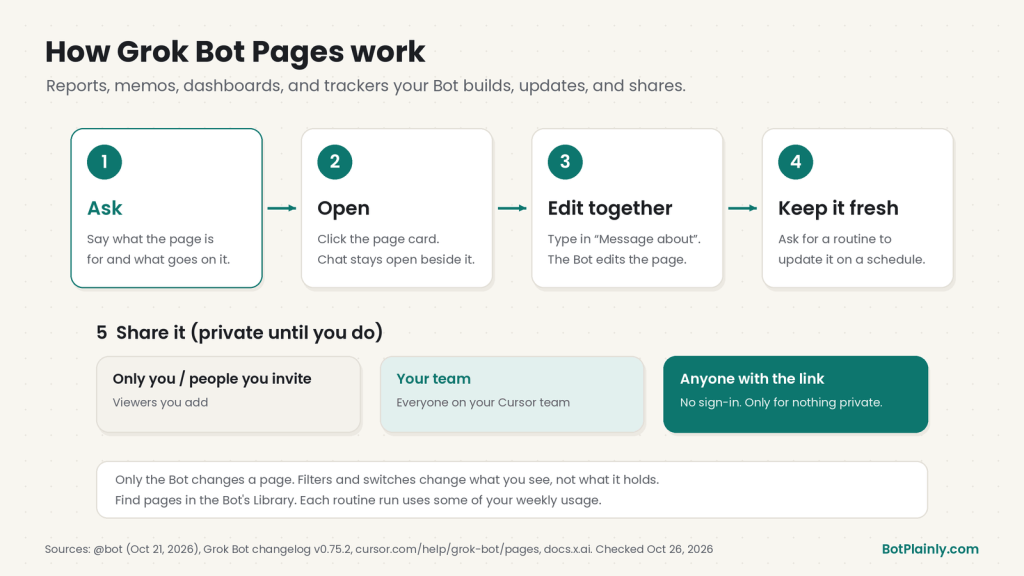
- Open a chat with your Bot.
- Say what the page is for and what should be on it. The more specific, the better.
- Wait for the page card. The Bot builds the page and posts it in the chat as a card with the page’s title and Open.
Example requests from the official docs:
“Make a page that compares the three quotes in this thread, with a table and a short recommendation.”
“Make a Page that summarizes this week’s support tickets by topic.”
“Build a dashboard of signups, trials, and conversions for the last 30 days.”
“Create a launch tracker that organizes open tasks, owners, and statuses.”
You can give the Bot material to work from: attach files, paste links, or point it to apps you’ve connected.
How to open and edit a page together
To open a page: on a computer, click the page card in the chat. The page fills the window, and the chat stays open in a smaller panel beside it, so you can keep talking to the Bot while you read. On the phone, tap the page card to open it in the app.
To change a page: ask the Bot. While the page is open, type in the chat panel beside it, labeled Message about and the page’s title. The Bot edits the same page, so everyone who can open it sees the change.
For example, you could say “Add a chart of the totals by month” or “Make the summary shorter.”
A few handy details:
- Updates show in the chat. When the Bot updates a page, the earlier card says Updated below. Clicking it opens the latest version.
- Rename it. To rename a page you made, click its title at the top of the open page.
- Search inside it. Press Cmd+F or Ctrl+F on an open page to search it.
How to keep a page up to date with a routine
This is the “have Bot keep it up to date” part. A routine tells a Bot when to run a job, on a schedule or when something happens, like an email arriving. Routines run in the cloud, even while your laptop is closed. SpaceXSI’s docs say: “You can ask Bots to update or create pages on Routines.”
To set one up, ask in plain words. For example:
“Every Monday at 8:00 AM, update my weekly sales page with last week’s numbers.”
Then open the routine and check When to run to make sure the schedule matches what you meant.
Watch your usage. Each routine run spends usage. Cursor’s routines help page warns that “An hourly schedule, a short interval, or a Slack trigger on a busy channel can use a week of usage in a day.” For most reports and dashboards, a daily or weekly update is plenty. A routine’s Test button does real work and uses usage too.
How to share a page
A new page is private to you until you share it.
- Open the page and click Share at the top. (You can also choose Share… from the page’s menu in the Library.)
- Under Who can view, pick an option.
- Click Copy link and send the link.
| Option | Who can open the page |
|---|---|
| People you invite | You and the teammates and groups you add, as Viewers. On a personal account, this option is Only you. |
| Your team | Everyone on your Cursor team |
| Anyone with the link | Anyone, with no sign-in needed |
People who open a team or invite link sign in with their Cursor account first. Grok Bot runs on Cursor’s platform, which our guide to what Cursor is explains.
Be careful with “Anyone with the link.” The page gets its own web address on pages.grok.bot, made from the page’s title, and anyone with that address can open it without signing in. Cursor’s help center says to share it “only when the page holds nothing private.” You can’t choose a custom address yet.
Everyone you share with can read the page and use its controls, but only the Bot can change it. Shared pages have a title bar with Download, which saves a PDF.
To unshare later, open Share again and pick a narrower option. Or go to Shared Canvases on your Cursor dashboard (cursor.com/dashboard/shared-canvases), where your shared pages are listed under Grok Bot Pages. From there you can change who can view a page or delete it. Deleting a page means anyone with the link loses access.
How to find your pages again
On a computer:
- Click the Bot’s name at the top of the chat to open its details.
- Open the Library tab.
The Library lists the pages, files, and apps the Bot has made. Click the More actions button (the three dots) on a page’s row to see Open, Share…, and Pin. Pinned pages stay at the top under Pinned, and the Pinned section syncs across your devices. You can also find past pages with Cmd+K search.
Page ideas to try
These are ideas, not official templates. Each one uses only what the docs say pages can do: text, tables, charts, filters, routines, and sharing.
- Weekly family budget dashboard. Attach a spending spreadsheet and ask for a page with a table by category and a chart of the week’s totals. Each week, share the new numbers and ask the Bot to update the same page. More ideas for home life are in Grok Bot for busy moms.
- Small-business sales report. Ask for a weekly page with sales totals, a chart, and a short “what changed” summary, built from a file or an app you’ve connected. See Grok Bot for side hustles and small businesses for more.
- Meeting memo. Share your notes and ask for a one-page memo with decisions, owners, and next steps in a table. Share it with your team when it’s ready.
- Quote or price comparison. Paste in a few quotes and ask for a side-by-side table with a short recommendation, like the official example.
- Project tracker. Ask for a tracker of open tasks, owners, and statuses, with a filter for each status.
Things to know
- Only the Bot edits a page. You and the people you share with can read it and use its controls. Changes happen when you ask the Bot.
- Public links are public. Keep “Anyone with the link” for pages with nothing private on them.
- Routines cost usage. Pick the slowest schedule that still works for you, and pause routines you don’t need.
- Signing in to sites. If your Bot needs to log in somewhere to get numbers for a page, our Grok Bot Vault guide shows how to save logins safely.
- Rather talk than type? See how to put Grok Bot on your iPhone Action Button for a quick voice chat with your Bot.
- AI can get things wrong. Check numbers, dates, and sources on a page before you share it or act on it.
FAQ
What are Grok Bot Pages?
Pages are things your Bot builds for you to read, such as reports, memos, dashboards, trackers, and explainers. A page can hold text, tables, charts, and controls like filters and switches, and it’s saved in the Bot’s Library.
How do I make a page in Grok Bot?
Ask your Bot in chat. Say what the page is for and what should be on it. The Bot builds the page and posts it in the chat as a card you can open.
Can I edit a Grok Bot page myself?
You edit a page by asking the Bot. While the page is open, type in the chat panel beside it, and the Bot updates the same page. Filters and switches change what you see, but nothing you do on the page is saved.
Can Grok Bot keep a page up to date automatically?
Yes. You can ask a Bot to create or update pages on a routine, such as every Monday morning. Each routine run uses some of your usage, so pick a schedule you actually need.
Who can see my Grok Bot page?
Only you, until you share it. You can share with people you invite, your team, or anyone with the link. A public link works without a sign-in, so use it only for pages with nothing private.
Which plans include Grok Bot Pages?
Pages is part of Grok Bot. On The X Subscription, Grok Bot comes with Premium ($30/month) and up. Pages is rolling out gradually, and it isn’t on Enterprise teams yet.
Sources (last checked October 26, 2026)
- Pages announcement: @bot on X (Oct 21, 2026)
- Release notes for v0.75.2 (Oct 22, 2026) and v0.70.2 (Oct 11, 2026): Grok Bot changelog
- How to make, open, change, find, and share pages: cursor.com/help/grok-bot/pages
- What a page can hold, example requests, and pages on routines: docs.x.ai, Files and results
- Routines, schedules, testing, and usage: cursor.com/help/grok-bot/routines
- Plans and prices: x.ai/pricing
BotPlainly is an independent guide. We’re not affiliated with, endorsed by, or sponsored by SpaceX, SpaceXSI (formerly xAI), X, or Cursor. Grok, Grok Bot, and Cursor are trademarks of their owners. We don’t earn anything from these plans or apps. Features and prices can change at any time, so always check the official pages.


Leave a Reply