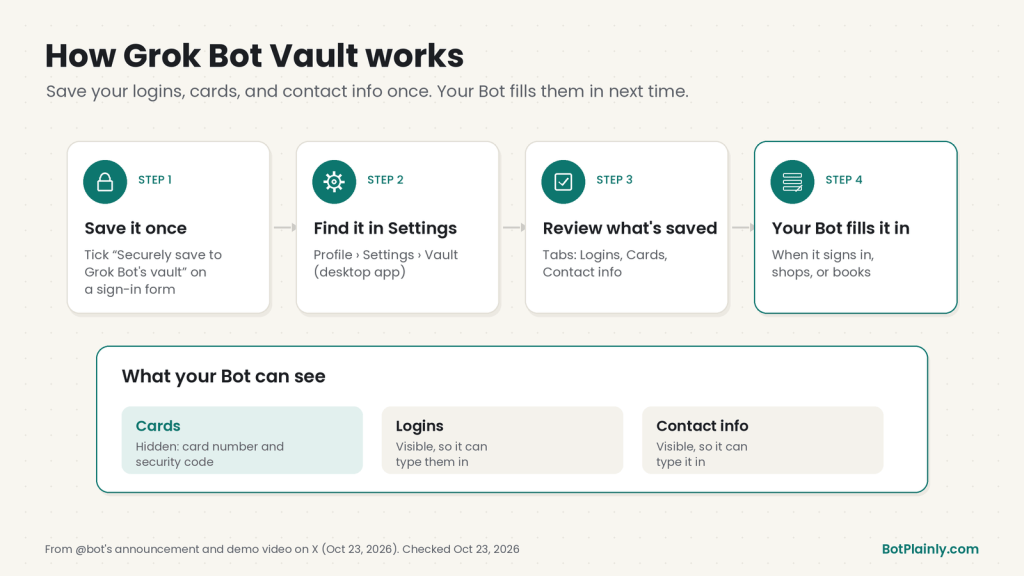
Short answer: Vault is a new place in Grok Bot that keeps your logins, payment cards, and contact info, so your Bot can fill them in when it signs in, shops, or books something for you. You’ll find it in the desktop app under Settings → Vault. The easiest way to add a login is to tick Securely save to Grok Bot’s vault the next time your Bot asks you to sign in to a site.
Last checked: October 23, 2026. This feature is brand new, so menus and wording may change. See the official links at the end.
What’s new
On October 23, 2026, the official @bot account on X announced: “Grok Bot can now save your logins, cards, and contact information. Add them once, and Bot securely remembers them for the future.”
I first spotted it in a post from Texas Twins Dad, who shared a handy walk-through of where to find it. Everything below is checked against @bot’s announcement and its demo video, plus the official Grok Bot help pages.
Before Vault, you had to type a password into a secure form every time your Bot hit a sign-in page, or connect a password manager. Now you can save it once and let your Bot reuse it.
What Vault saves
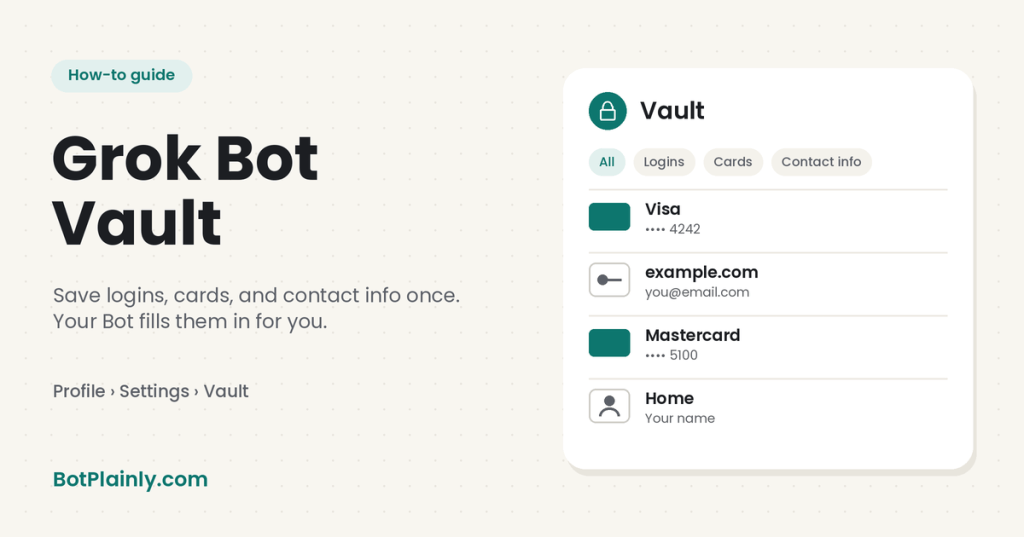
In @bot’s demo video, the Vault page has four tabs:
- All: everything in one list.
- Logins: a website plus the email or username you use there, like github.com or nytimes.com.
- Cards: payment cards, shown only by the card name and the last four digits (for example “Visa •••• 4242”).
- Contact info: your details, such as an entry called “Home” with a name on it.
Each saved item shows up as one row, so you can see at a glance what your Bot has on file.
What your Bot can and can’t see
This is the part worth reading slowly. The demo video shows this note at the bottom of the Vault page:
“Grok Bot never sees a saved card’s number or security code. It can see logins and contact info so it can type them in for you.”
So, in plain English:
- Cards: your Bot can use a saved card, but the card number and security code are hidden from it.
- Logins and contact info: your Bot can see these, because it needs to type them into the page.
The sign-in form in the same demo also says the password is “Never shown to your Bot. Only filled on ads.google.com,” which means a saved login is tied to the site it belongs to. xAI hasn’t published a help page that explains the technical details, such as how Vault data is encrypted. I’m not going to guess, so stick to what the app tells you on screen.
Before you start
- A plan that includes Grok Bot. Grok Bot comes with The X Subscription’s Premium plan ($30/month) and up. The Free and Plus plans don’t include it. Our Grok Bot pricing guide has the full breakdown.
- The latest Grok Bot app. Vault was announced on October 23, 2026. xAI didn’t name a minimum app version, so update the app first. If Vault still isn’t in your Settings, check back later.
- A strong password on your own account. Vault keeps sensitive details tied to your account, so the account itself should be locked down (more on that below).
How to find Vault
These steps are for the Grok Bot desktop app, which is what the demo shows:
- Open the Grok Bot app on your Mac, Windows, or Linux computer.
- Click your profile at the bottom of the sidebar to open your account menu.
- Choose Settings.
- Click Vault in the Settings list. It sits between Computer and Usage & Billing.
You’ll see your saved items and the tabs for Logins, Cards, and Contact info. If you haven’t saved anything yet, the list will be empty.
The official demo only shows the desktop app. I couldn’t confirm where Vault lives in the phone app yet, so check your phone’s settings or use your computer.
How to save a login to Vault
The demo shows this flow, using Google Ads as the example:
- Ask your Bot to do something that needs a sign-in. In the demo, the request is “Pause my Google Ads Manager campaigns that are over budget.”
- Your Bot sends a sign-in card. It names the site (“Sign in to Google Ads Manager”) and says “Opens a secure form.” Choose Open.
- Fill in the secure form. Enter your email or username and your password.
- Tick “Securely save to Grok Bot’s vault.” The checkbox sits under the password field.
- Choose Submit. Your Bot signs in and carries on with the task.
Next time your Bot needs to sign in to that site, it can use the saved login instead of asking you to type it again. The new login also shows up under Settings → Vault → Logins.
How to add cards and contact info
The announcement says you “add them once,” and the demo shows cards and contact info saved in Vault. But it doesn’t show the exact steps for adding them, and there’s no official help page for Vault yet. Here’s what I’d do:
- Look on the Vault page for a way to add an item.
- Watch for the same kind of “save” option when your Bot asks for checkout or contact details in a secure form.
When xAI publishes steps, I’ll update this guide.
Vault vs. 1Password: which should you use?
Grok Bot also works with 1Password. @bot announced the new 1Password integration on October 22, 2026, and said it’s rolling out over a few days. Here’s how the two compare, based on the official help pages and the Vault demo:
| Grok Bot Vault | 1Password | |
|---|---|---|
| Where it lives | Inside Grok Bot (Settings → Vault) | Your own 1Password account |
| Logins | Yes | Yes, from your Personal (or Private) vault |
| Payment cards | Yes. The Bot never sees the number or security code | No. Grok Bot’s help center says 1Password doesn’t fill payment cards |
| Contact info | Yes | Not mentioned for Grok Bot |
| Can the Bot see the login? | The Vault page says it can see logins so it can type them | No. The help center says your Bots never see the values |
| Approval | Not described in the demo | You approve each login in 1Password |
| Cost | Part of Grok Bot | Needs a 1Password account (version 8.12.42 or later) |
In short: Vault is the simple, built-in choice, and it’s the one that handles cards and contact info. If you already use 1Password and want to approve each login yourself, connect it under Connect apps → Password Managers. You can use both.
Simple safety tips
Saving logins and cards in one place is convenient, and it’s worth a few minutes of care:
- Lock down your own account. Use a strong, unique password and turn on two-step sign-in wherever your account offers it. Anyone who gets into your account could ask your Bots to use what’s saved.
- Save only what you need. Start with the sites and cards your Bot actually uses. You don’t have to move your whole password list in.
- Review your Vault now and then. Open Settings → Vault and look through it. If you see a card you’ve canceled or a login you no longer use, take it out if the app gives you that option.
- Keep purchase approvals on. Grok Bot asks you before buying something, and you can add an “ask first” rule for purchases in Settings. Saved cards make checkout faster, so that check matters more.
- Never paste passwords or card numbers into ordinary chat. Use the secure form your Bot sends. The official docs say passwords and one-time codes never belong in ordinary chat.
- Remember the shared computer. All your Bots share one cloud computer. Think before you save a login for an account you wouldn’t want every one of your Bots to reach.
- Watch your statements. As with any saved card, check your bank or card app for charges you don’t recognize.
Where Vault helps day to day
A few everyday examples where saving details once saves you typing:
- Reordering household basics. Your Bot signs in to the store, fills your address, and gets to checkout with your saved card. You still approve the purchase. Busy parents can find more ideas in our Grok Bot for busy moms guide.
- Running a small business. Your Bot signs in to your ad, store, or supplier accounts to check orders or pause a campaign, like the Google Ads example in the demo. See Grok Bot for side hustles and small businesses.
- Booking on the go. Ask by voice, and let your Bot fill in your details. On an iPhone 15 Pro or later, you can even put Grok Bot on your Action button and ask with one press.
Things to know
- It’s brand new. Vault was announced on October 23, 2026. There’s no official help page for it yet, so some details (like phone app steps and how to edit or delete items) aren’t confirmed.
- Passkeys, captchas, and some checks still need you. The official docs say your Bot should hand control to you for things like two-factor codes, passkeys, CAPTCHAs, and payment confirmations.
- It’s not the same as Secrets. API keys and other credentials for apps go in Grok Bot’s separate secure secret card or a Team Bot’s Secrets section.
- AI can get things wrong. Check what your Bot filled in before you approve a purchase or booking.
Frequently asked questions
What is Grok Bot Vault?
Vault is a place in Grok Bot where you can save logins, payment cards, and contact info. Your Bot uses them to fill in forms when it signs in, shops, or books something for you, so you don’t have to type the same details again.
Where do I find Vault in Grok Bot?
In the Grok Bot desktop app, click your profile at the bottom of the sidebar, choose Settings, then click Vault. It sits between Computer and Usage & Billing in the Settings list.
How do I save a login to Vault?
When your Bot asks you to sign in to a site, open the secure form it sends, enter your email and password, tick “Securely save to Grok Bot’s vault,” and choose Submit. The login then appears under Settings, Vault, Logins.
Can Grok Bot see my saved card number?
No. The Vault page says Grok Bot never sees a saved card’s number or security code. It can see saved logins and contact info so it can type them in for you.
Is Grok Bot Vault the same as 1Password?
No. Vault is built into Grok Bot and saves logins, cards, and contact info. 1Password is a separate app you can connect. It fills logins you approve, your Bots never see the values, and it doesn’t fill payment cards. You can use both.
Does Vault cost extra?
No separate price was announced. Vault is part of Grok Bot, which comes with The X Subscription’s Premium plan at $30 a month in the US, or higher plans.
Sources (last checked October 23, 2026)
- Vault announcement and demo video: @bot on X, Oct 23, 2026
- Where I first saw it (community walk-through, not official): Texas Twins Dad on X, Oct 23, 2026
- 1Password integration: @bot on X, Oct 22, 2026
- How 1Password works with Grok Bot: cursor.com/help/grok-bot/connect-apps
- Secure forms, passwords and codes, and approvals: docs.x.ai, Approvals, security, and privacy (updated Oct 22, 2026)
- Secure secret cards: cursor.com/help/grok-bot/secrets
- Account menu, Settings, and checkout updates: Grok Bot changelog
- Plans and prices: x.ai/pricing
BotPlainly is an independent guide. We’re not affiliated with, endorsed by, or sponsored by SpaceXSI (formerly xAI), X, Cursor, or 1Password. Grok and Grok Bot are their trademarks, and 1Password is a trademark of its owner. We don’t earn anything from these plans or apps. Features can change at any time, so always check the official pages.