
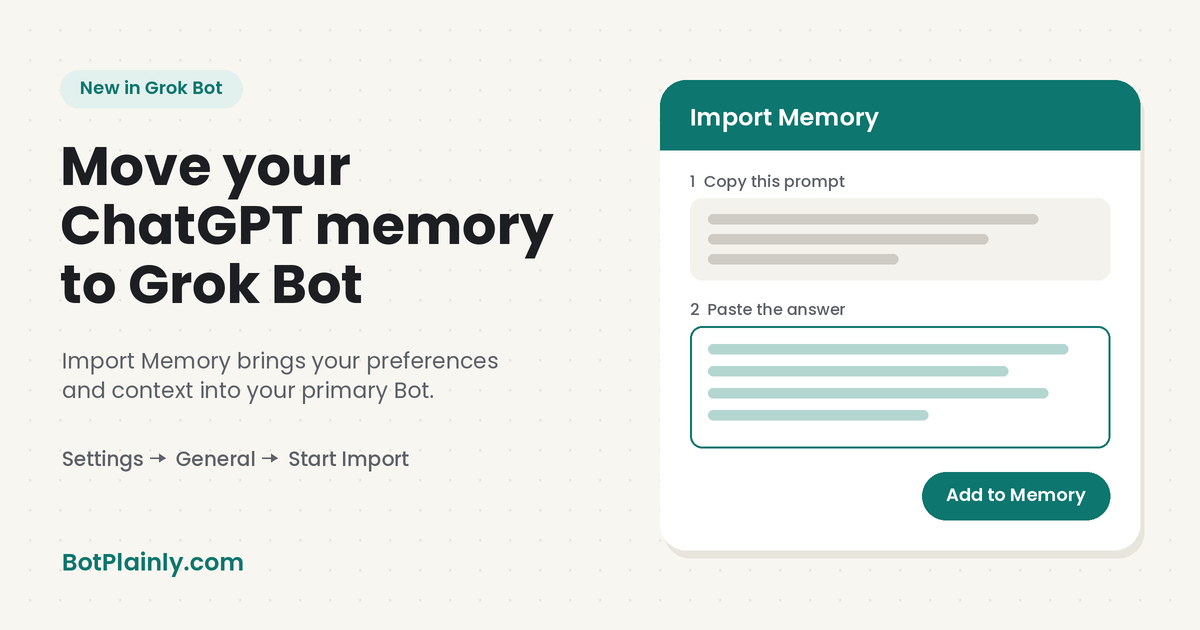
Short answer: Grok Bot now has Import Memory, so you don’t have to start from zero. In the Grok Bot app, open Settings → General and choose Start Import under Import. Copy the prompt Grok Bot gives you into a chat with ChatGPT, paste ChatGPT’s answer into the second box, and choose Add to Memory. Grok Bot sends it to your primary Bot and opens that chat. You need Grok Bot version 0.75.2 or later.
Last checked: October 28, 2026. Grok Bot changes fast, so see the official links at the end.
What’s new
The Grok Bot changelog lists Import Memory in version 0.77.0 (October 26, 2026), titled “Permissions, Vault payments, and question cards.” It says:
“Import Memory to Grok Bot, in Settings, brings your preferences and context from another AI assistant into your primary Bot.”
The changelog marks it “Requires Grok Bot 0.75.2 or later.” The official SpaceXSI docs also describe the steps, so everything below comes from those pages.
If you’ve used ChatGPT for a while, it may already know how you like answers written, what you do for work, or which projects you’re juggling. Import Memory lets you bring that over instead of explaining it all again.
Before you start
- You need Grok Bot. On The X Subscription, Grok Bot comes with Premium ($30/month) and up: Super is $100 and Ultra is $200. Free ($0) and Plus ($8) don’t include it. Our Grok Bot pricing guide explains each plan.
- Update the app. Import Memory needs version 0.75.2 or later. To see your version, open the account menu and choose Support → About.
- Have a primary Bot. Imports go to your primary Bot, your main point of contact, marked with a star. If you don’t have one, Grok Bot shows Introducing your primary Bot. Choose Create primary Bot, or Choose an existing Bot and then Confirm.
- Use the desktop app. The official steps describe the Settings dialog on your computer. I couldn’t find official steps for the phone app, so use your computer for this one.
Step 1: See what ChatGPT remembers
It helps to know what’s in ChatGPT’s memory before you move it. OpenAI’s help center says you can:
- Open the memory settings: in ChatGPT, open Settings, select Personalization, then select Memory. Depending on your account, you may see options like Memory summary, Manage, or Saved memories.
- Or just ask: OpenAI says, “You can also ask ChatGPT what it remembers about you.”
Two things OpenAI points out are worth knowing. ChatGPT’s memory “does not retain every detail from every conversation,” and the memory summary “does not necessarily include every detail.” So the answer you carry over is a useful summary, not a full copy of every chat. Memory features also vary by plan, region, and workspace.
Step 2: Start the import in Grok Bot
- Open Grok Bot Settings. Open the account menu and choose Settings, or press Cmd+, on a Mac or Ctrl+, on Windows and Linux.
- Go to General. Find the Import section, where it says Import Memory to Grok Bot.
- Choose Start Import. Grok Bot shows a prompt for you to copy.
Step 3: Ask ChatGPT, then paste the answer back
- Copy the prompt from Grok Bot.
- Paste it into a chat with ChatGPT and send it.
- Read ChatGPT’s answer before you copy it. This is your chance to cut anything you don’t want to move (more on that below).
- Paste the answer into the second box in Grok Bot’s import window.
- Choose Add to Memory. Grok Bot sends the import to your primary Bot and opens that chat.

I’m not sharing the import prompt’s wording here, because it comes from the app and could change. Use the one Grok Bot shows you.
The steps work with “another AI assistant,” according to the docs, so the same flow should work if you’re coming from a different assistant too.
Step 4: Check what your Bot saved
There’s no memory screen for a personal Bot. The official docs say to ask in chat instead:
- To see it: “What do you remember about me?”
- To correct it: “That’s out of date. I moved to Denver.”
- To remove it: “Forget that I’m on the launch team.”
Those three examples are word for word from the docs. It’s a good idea to ask the first one right after your import, then fix anything that’s wrong or old.
What to leave out of the import
The docs say a Bot’s memory is for things like how you like to work, rules you ask it to keep, facts about you like your name and time zone, and a dated log of its work with you. They also say: “Logins, cards, and contact info, like addresses and phone numbers, belong in Vault, not in memory.”
So before you paste ChatGPT’s answer, delete:
- Passwords, card numbers, and account numbers. These belong in Grok Bot’s Vault, not memory. Our Grok Bot Vault guide shows how it works.
- Addresses and phone numbers. Same reason: they go in Vault as contact info.
- Anything old or wrong. If ChatGPT still thinks you live somewhere you moved from, fix it now.
- Anything private you’d rather not keep. It’s your choice what comes over.
How Grok Bot memory works after the import
A few official points help this make sense:
- It goes to one Bot. The import goes to your primary Bot. Each Bot has its own memory.
- Some facts are shared. A few facts about you, such as your name and time zone, are shared by all your Bots. When one Bot learns one of these, your other Bots know it too.
- It works across chats. What a Bot saves in one chat, it remembers in all your chats with it.
- It’s yours. A personal Bot’s memory is yours, and only you can change it.
- Resetting a chat keeps memory. Deleting a Bot deletes that Bot’s memory, and deleting your account deletes all your Bots’ memory.
- Memory isn’t a source of truth. The docs say to keep changing facts in the source system, and to back safety rules with approvals and Auto-review rules, not memory alone.
Wondering how the two assistants compare in the first place? See our Grok vs ChatGPT guide.
Also new in Grok Bot 0.77.0
Import Memory came in the same release as a few other handy changes. Here’s what the changelog says, in plain English:
- 1Password without a shared vault. “1Password connects without a shared vault: you approve each login in 1Password, which fills it in the Bot’s browser without the Bot seeing it.”
- Vault updates. The Vault has a Payments tab where you pick the payment method Bots use first, a Hints field that tells Bots when to use each entry, and one contact can hold several emails and phone numbers. One thing to know: the changelog says “you still approve every purchase,” but the official Vault docs say a card saved in Vault “fills in at checkout without asking you each time.” If you want to approve every payment, the docs say not to save the card. Details are in our Vault guide.
- A Permissions section in Settings. It lists your Auto-review rules under Always Ask and Allow without Asking, each with its own Add Rule button.
- Approval cards stay open longer. The changelog says Auto-review approval cards now stay open for 30 minutes instead of 10. The docs add that a card from work you started in chat waits for your answer, while a card raised by a routine or other background work expires after 30 minutes.
- Question cards. Bots can ask several questions on one card, with Your own answer when none of the choices fit.
- Live dictation. Dictation writes words into the message box while you’re still speaking.
- Order Concierge and Deal Watcher templates. They track your orders, refunds, and returns, and watch prices and coupons, “never buying without your OK.”
- Delete a Page. Page owners can delete a Page from the Library, which removes it for everyone it was shared with. Our guide to Grok Bot Pages covers the rest.
Things to know
- Imports go to your primary Bot. If you want a different Bot to get them, change your primary Bot first: right-click it in the sidebar and choose Replace with different Bot.
- You can’t edit memory on a screen. You check and fix it by chatting with your Bot.
- ChatGPT’s answer is a summary. It may leave things out. You can always tell your Bot more later, like “Remember that I’m out every Friday.”
- Your ChatGPT memory stays put. The official pages describe copying an answer over. Nothing in them says the import changes or deletes anything in ChatGPT.
- AI can get things wrong. Read what you paste, and check what your Bot says it remembers.
FAQ
Can I move my ChatGPT memory to Grok Bot?
Yes. Grok Bot’s Import Memory feature brings your preferences and context from another AI assistant, like ChatGPT, into your primary Bot. Open Settings, then General, choose Start Import, and follow the steps.
Where is Import Memory in Grok Bot?
In the Grok Bot app, open Settings, go to General, and find Start Import under Import. It needs Grok Bot version 0.75.2 or later.
How do I see what ChatGPT remembers about me?
In ChatGPT, open Settings, select Personalization, then select Memory. OpenAI also says you can simply ask ChatGPT what it remembers about you.
Which Bot gets my imported memory?
Your primary Bot. Grok Bot sends the import to your primary Bot and opens that chat. A few facts, like your name and time zone, are shared by all your Bots.
How do I check or fix what Grok Bot remembers?
Ask your Bot in chat. Say “What do you remember about me?” to see it, tell it what’s out of date to correct it, or ask it to forget something to remove it.
Should I import passwords or card numbers?
No. Grok Bot’s docs say logins, cards, and contact info belong in Vault, not in memory. Delete them from ChatGPT’s answer before you paste it.
Sources (last checked October 28, 2026)
- Import Memory, 1Password, Vault, Permissions, approval cards, question cards, dictation, templates, and Page deletion: Grok Bot changelog, v0.77.0 (Oct 26, 2026)
- Import steps, primary Bot, and how Bot memory works: docs.x.ai, Create and manage Bots
- Settings, the Import section, and the app version: docs.x.ai, Settings and notifications
- What your Bot remembers: cursor.com/help/grok-bot/memory
- Vault, saved cards, and payments: docs.x.ai, Vault and secure sign-in
- Approval cards and when they expire: docs.x.ai, Approvals, security, and privacy
- ChatGPT memory settings: OpenAI Help Center, Memory in ChatGPT
- Plans and prices: x.ai/pricing
BotPlainly is an independent guide. We’re not affiliated with, endorsed by, or sponsored by SpaceX, SpaceXSI (formerly xAI), X, Cursor, OpenAI, or 1Password. Grok, Grok Bot, ChatGPT, and 1Password are trademarks of their owners. We don’t earn anything from these plans or apps. Features and prices can change at any time, so always check the official pages.
Leave a Reply