
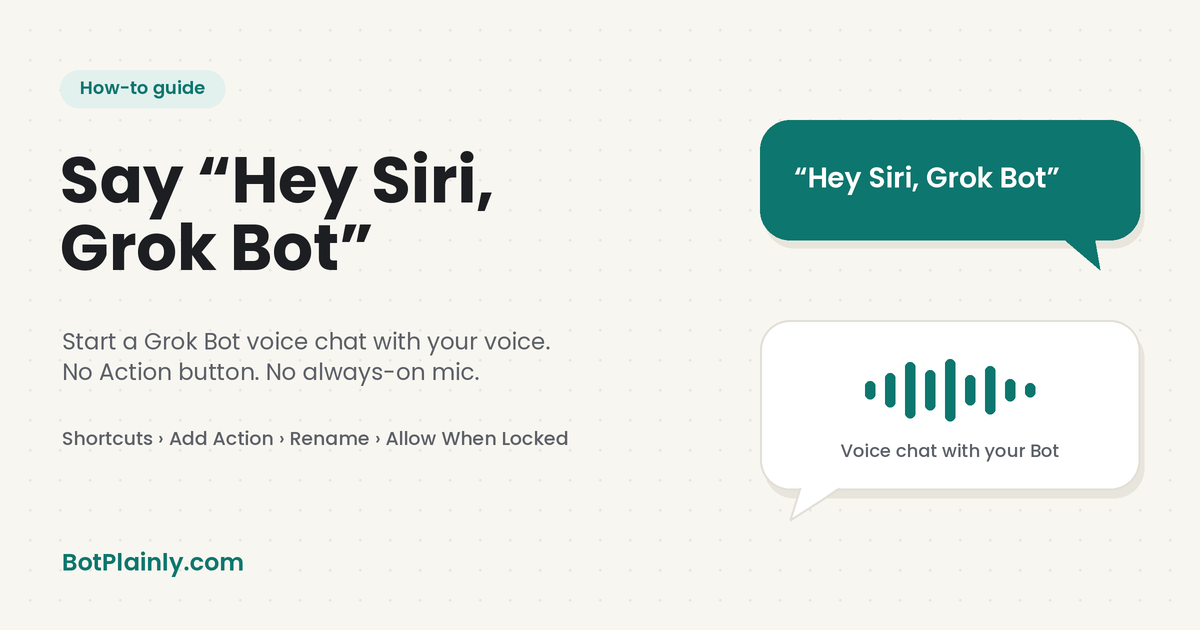
Short answer: You can start a Grok Bot voice chat just by saying “Hey Siri, Grok Bot.” Make a shortcut in Apple’s Shortcuts app with the Grok Bot voice chat action, name it “Grok Bot,” and turn on Allow Running When Locked. It costs nothing extra, it’s built into iOS, and it doesn’t need an Action button or a mic that’s always on.
Last checked: November 1, 2026. iPhone and app screens change, so see the official links at the end.
Where this tip comes from
This method was shared by @Texas_Twins_Dad (Texas Twins Dad) on X on November 1, 2026. Here’s his original post, with a 38-second animated walkthrough video. In it, searching the Shortcuts app for Grok Bot shows two actions, Start a Voice Chat with Bot and Send Message to Bot. All the credit for the idea and the steps goes to him.
His idea in his own words: “Since Siri is already at the gate, just ask Siri to put you through to Grok Bot.”
I (Fiona D.) wrote this guide from his public post and checked it against Apple’s and Grok Bot’s official help pages. I couldn’t test it on every iPhone, so your screens may look a little different.

Why it’s nicer than the always-on method
A week earlier, @Texas_Twins_Dad shared a way to get “Hey Grok” on iPhone with Vocal Shortcuts. He said it worked, but it had real downsides:
- The mic was always on (“the orange dot never goes away”)
- Extra battery drain
- It could clash with calls, recording, and video
- False triggers from the TV or words that sound similar
The Siri way avoids that, he says: “Siri’s wake word is already running on your phone, so nothing new is listening in the background.” He also calls it “still free, and all built into iOS.”
What you need
- An iPhone with Siri turned on, set to listen for “Siri” or “Hey Siri.” Apple puts this under Settings → Siri → Requests.
- The Grok Bot app. Version 1.19.0 was the newest on the App Store when I checked on November 1, 2026. It needs iOS 18 or later.
- A plan that includes Grok Bot. On The X Subscription, that’s Premium ($30/month), Super ($100/month), or Ultra ($200/month). Free and Plus ($8/month) don’t include it. Our Grok Bot pricing guide covers older plans that also work.
Grok Bot and Grok are two separate apps. This shortcut is in the Grok Bot app. If you’re not sure which one you have, our guide to what Grok is explains the difference.
You don’t need an Action button. That makes this a good fit for iPhones that don’t have one, or if your Action button already does something else. If you do have one, our Action Button guide shows the one-press version.
How to set it up, step by step
These are @Texas_Twins_Dad’s steps, with a little extra detail from Apple’s Shortcuts guide.
- Add the Grok Bot action. Open the Shortcuts app and tap +. Tap Add Action, search for “Grok Bot,” and pick the voice chat action. His steps call it “Start a Voice Chat with Bot.” Grok Bot’s official docs list the shortcut as Start Voice Chat, so the name may look a little different on your phone.
- Rename the shortcut to “Grok Bot.” He says you can use “anything easy for Siri to hear.” Apple’s steps: tap the down arrow next to the shortcut name, tap Rename, type the new name, then tap Done.
- Turn on Allow Running When Locked. His steps say to do this “in the shortcut’s details.” Apple’s guide puts this switch under Privacy in the shortcut’s details.
- Say “Hey Siri, Grok Bot.” In his words, “Grok Bot voice chat opens.” Allow microphone access if your iPhone asks.
What if your phone is locked? He says: “Face ID unlocks it, and your Grok Bot call is on.” That fits Apple’s guide, which says that when your device is locked and a shortcut opens an app, Siri asks you to unlock before it keeps going.
What happens during the call
The official Grok Bot help page says the phone shows Calling… and then the Bot starts talking. You can Mute, Hang up, or Show transcript during the call. After you hang up, a Voice chat card in that Bot’s chat lets you read the full transcript.
If you have more than one Bot, the official docs say that if you don’t pick a Bot for the shortcut, Grok Bot asks which one.
If it isn’t working
- Siri doesn’t answer. Apple says to check that you’re online, then go to Settings → Siri → Requests and make sure “Siri” or “Hey Siri” is on. On some iOS versions, it’s under Apple Intelligence & Siri → Talk & Type to Siri. If it’s already on, Apple suggests turning it off and back on.
- Siri does something else. Apple says you run a shortcut by saying its name, so say the exact name you gave it. Pick a short, clear name. Apple also notes that if a shortcut has the same name as a standard Siri command, Siri runs the shortcut instead.
- You can’t find the Grok Bot action. Update the Grok Bot app from the App Store. Make sure you have the Grok Bot app, not only the Grok app. Search “Grok Bot” in Add Action, as his steps say.
- You can’t find Allow Running When Locked. Look under Privacy in the shortcut’s details. Apple says the Privacy tab doesn’t show up when a shortcut has no access to your data, so it may not appear for every shortcut. I couldn’t confirm what this shortcut shows on every iPhone.
- The call drops. Grok Bot shows Voice chat failed. Choose Dismiss, check your internet connection, and start the call again.
- The call ended when a phone call came in. In the phone app (version 1.18 and later), a voice chat ends when a phone call, FaceTime, or another app takes over the audio. Start it again when you’re done.
Siri or the Action button?
| Hey Siri shortcut | Action button | |
|---|---|---|
| How you start it | Say “Hey Siri, Grok Bot” | Press and hold the button |
| iPhones | Any iPhone that runs Siri and the Grok Bot app | iPhone 15 Pro or later |
| Hands-free | Yes | No, you press a button |
| Setup | Shortcuts app, 3 steps | Settings → Action Button |
Some people use more than one. In the replies to his post, @itsMeStevenL wrote that he “replaced camera with grok bot shortcut.”
Good to know
- Voice chats use your plan’s usage. Grok Bot draws from your plan’s shared weekly usage pool, the same as any other Grok Bot job.
- AI can get things wrong. Double-check anything important you hear on a call, like times, prices, or addresses.
For other recent changes in the app, see what’s new in Grok Bot in October 2026.
Frequently asked questions
How do I start a Grok Bot voice chat with Siri?
Make a shortcut in the Shortcuts app with the Grok Bot voice chat action, rename it “Grok Bot,” and turn on Allow Running When Locked in the shortcut’s details. Then say “Hey Siri, Grok Bot.” These steps come from @Texas_Twins_Dad on X.
Does the Hey Siri method cost extra?
No. Siri and the Shortcuts app are built into iOS, and @Texas_Twins_Dad calls the method “still free.” You still need a plan that includes Grok Bot, and voice chats use your plan’s weekly usage pool.
Which plans include Grok Bot?
On The X Subscription, Grok Bot is included on Premium ($30/month), Super ($100/month), and Ultra ($200/month). The Free plan and Plus ($8/month) don’t include it. Prices were checked on November 1, 2026.
Do I need an iPhone with an Action button?
No. This method uses Siri and the Shortcuts app, so it doesn’t need an Action button. The Action button version needs an iPhone 15 Pro or later.
Does it work on Android?
His post doesn’t mention Android. Siri and the Shortcuts app are Apple features. Android phones can still start a voice chat inside the Grok Bot app.
Sources (last checked November 1, 2026)
- The method, steps, and quotes: @Texas_Twins_Dad on X, Nov 1, 2026
- Reply about the camera shortcut: @itsMeStevenL on X, Nov 1, 2026
- Running a shortcut with Siri, and locked devices: Apple Shortcuts User Guide, Use Siri to run shortcuts
- Creating a shortcut: Apple Shortcuts User Guide, Create a custom shortcut
- Renaming a shortcut: Apple Shortcuts User Guide, Rename shortcuts
- Allow Running When Locked under Privacy: Apple Shortcuts User Guide, Add automations
- The Privacy tab: Apple Shortcuts User Guide, Adjust privacy settings
- Turning on “Hey Siri”: Apple iPhone User Guide, Change Siri settings
- Siri fixes: Apple Support, If Siri isn’t working on your iPhone or iPad
- Grok Bot’s Siri shortcuts: docs.x.ai/grok-bot/mobile
- Voice chat controls and fixes: cursor.com/help/grok-bot/voice-chat
- App version and iOS requirement: Grok Bot on the App Store
- Plans and prices: x.ai/pricing and cursor.com/help/grok-bot/plans
BotPlainly is an independent guide. It is not affiliated with, endorsed by, or sponsored by SpaceXSI (formerly xAI), X, Cursor, or Apple. Grok, Grok Bot, and X are trademarks of their owners, and iPhone and Siri are trademarks of Apple Inc. Prices and features change often, so always confirm on the official site before you buy.