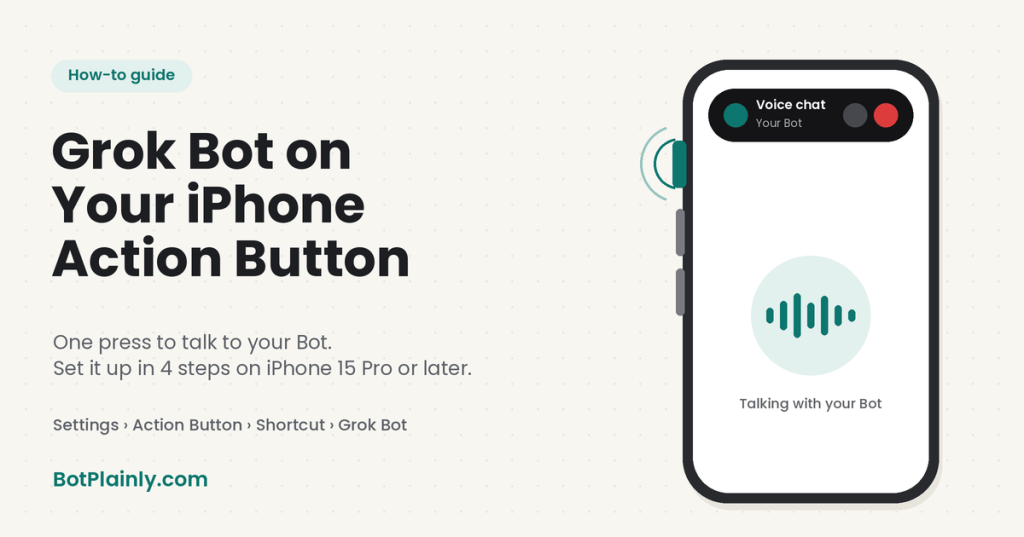
Short answer: On an iPhone 15 Pro or later, update the Grok Bot app to version 1.16 or newer. Then go to Settings → Action Button, swipe to Shortcut, and choose Grok Bot → Start Voice Chat. After that, pressing the Action button starts a live voice chat with your Bot, so you can hand it a job without opening the app.
Last checked: October 23, 2026. Features and app versions change, so see the official links at the end.
What’s new
On October 19, 2026, the official @bot account on X announced: “Set it as your iPhone’s Action Button and press it to talk with Bot.” A follow-up post the same day gave the steps: “On an iPhone 15 Pro or later, update Grok Bot to 1.16. Then go to Settings → Action Button, swipe to Shortcut, and choose Grok Bot → Start Voice Chat.”
In @bot’s short demo video, the call opens at the top of the screen with mute and hang-up buttons, and the app icons stay on the Home Screen behind it.
A voice chat is a live spoken conversation with one Bot. You talk, and the Bot talks back. It’s different from dictation, which only turns your words into a text message.
What you need
- An iPhone with an Action button. Apple lists it on iPhone 15 Pro and 15 Pro Max, every iPhone 16 model (including iPhone 16e), iPhone 17, 17 Pro and 17 Pro Max, iPhone Air, iPhone 17e, and iPhone 18 Pro and 18 Pro Max. The regular iPhone 15, iPhone 15 Plus, and older models have a Ring/Silent switch instead. Apple’s model page doesn’t mention an Action button for iPhone Duo. Not sure which phone you have? Go to Settings → General → About and look at Model Name.
- The Grok Bot app, version 1.16 or newer. Version 1.17.0 was the latest on the App Store when I checked on October 23, 2026. The app needs iOS 18 or later.
- A plan that includes Grok Bot. Grok Bot comes with The X Subscription’s Premium plan ($30/month) and up. The Free and Plus plans don’t include it. See our Grok Bot pricing guide for the full breakdown.
- Microphone access for the Grok Bot app. Allow it if your iPhone asks.
Grok Bot and Grok are two separate apps. This shortcut is in the Grok Bot app. If you’re not sure which one you have, our guide to what Grok is explains the difference.
How to set it up, step by step
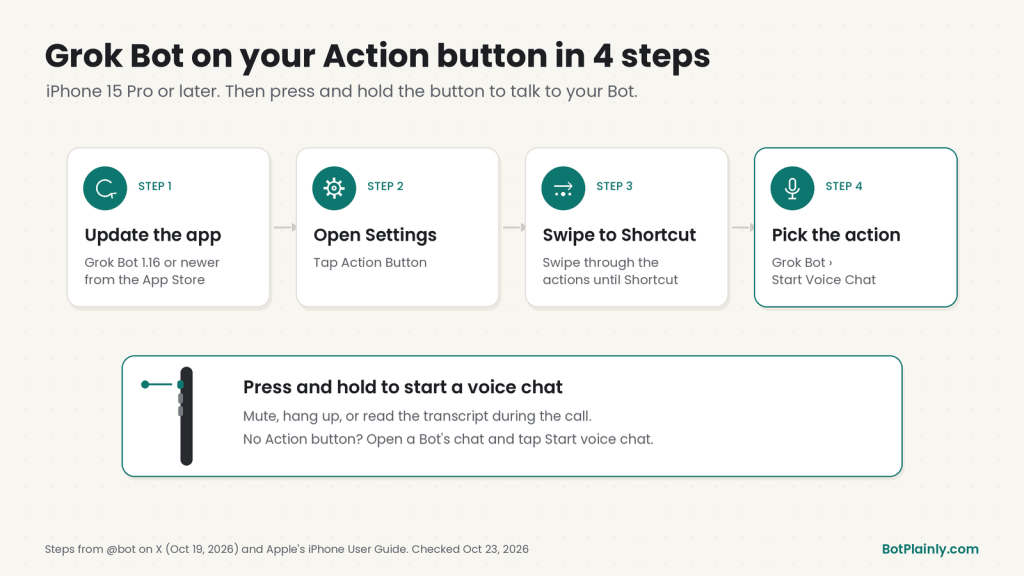
- Update Grok Bot. Open the App Store, find Grok Bot, and tap Update if you see it. You need version 1.16 or newer.
- Open Settings and tap Action Button. You’ll see the side of your iPhone, with icons for the actions you can pick.
- Swipe to Shortcut. The name of each action shows below the dots as you swipe.
- Choose Grok Bot → Start Voice Chat. Tap the button under Shortcut (Apple’s guide calls it Choose a Shortcut), then pick Grok Bot and Start Voice Chat.
- Press and hold the Action button to start talking to your Bot. Allow microphone access if your iPhone asks.
Don’t skip step 4. Apple says that for the Shortcut action, you have to tap the button below it and pick an option. Otherwise, the Action button does nothing.
I wrote these steps from the official @bot posts and Apple’s iPhone User Guide. I couldn’t test them on every iPhone, and the exact screens may look a little different on yours.
What happens during the call
According to the official Grok Bot help page on voice chat, the phone shows Calling… and then the Bot starts talking. During the call you can:
- Mute or unmute your microphone
- Hang up to end the call
- Show transcript to read along
- Show settings to change the voice, speed, and language (Auto-detect picks the language from what you say)
A few more things from the official docs and changelog:
- One call at a time. Only one voice chat runs at once. If you start another, Grok Bot asks whether to end the current one.
- The work can keep going after you hang up. If you hang up while the Bot is still working on what you asked, it finishes and posts the result in the chat.
- A sleeping Bot computer wakes up. A voice call from your phone wakes the Bot’s sleeping computer, so it can work on what you said after the call.
- It remembers context. As of the October 22, 2026 update, voice calls can draw on your earlier calls and recent chat with the Bot.
Which Bot answers? @bot’s posts don’t say which of your Bots picks up if you have more than one. In the demo video, the call shows one Bot’s name. Check the name on your first call so you know who you’re talking to.
What to say when you press it
The Action button is best for quick jobs you think of while your hands are busy. Here are some ideas you can say out loud. A few need an app connected first, like Gmail or Google Calendar.
“What’s on my calendar tomorrow? Tell me the first thing I need to leave the house for.”
“Draft a reply to the last email from my kid’s school saying we’ll be there Friday. Don’t send it.”
“Find three plumbers near me with good reviews who can come this week, and put their numbers in the chat.”
“Every weekday at 7 AM, send me a short summary of my calendar and any emails that need an answer today.”
“I just had an idea for my side business. Write it down, then research who already sells something like it and tell me tonight.”
Every email a Bot writes still waits as a draft until you press Send. Pressing the Action button doesn’t change that. If you’re a parent juggling a lot, our Grok Bot for busy moms guide has more ideas. If you run a business on the side, see Grok Bot for side hustles and small businesses.
If it isn’t working
- Grok Bot isn’t in the Shortcut list. Update the Grok Bot app to 1.16 or newer first. Make sure you swiped to Shortcut, not Controls. And check that you have the Grok Bot app, not only the Grok app. If it’s still missing, I didn’t find another official fix as of October 23, 2026.
- The button does nothing. Go back to Settings → Action Button and make sure you picked Grok Bot → Start Voice Chat under Shortcut. Apple says the button does nothing if no option is picked.
- You see a microphone error. Allow Grok Bot to use the microphone in your iPhone’s settings, then try again.
- The call drops. Grok Bot shows Voice chat failed. Choose Dismiss, check your internet connection, and start the call again.
- Your iPhone has no Action button. You can still start a voice chat in the app: open the chat with the Bot, leave the message box empty, and tap Start voice chat (the waveform button in the message box).
Good to know before you rely on it
- Voice chats use your plan’s usage. Every paid tier has a weekly usage pool, and it covers Chat, Imagine, Voice, and Bot. A job you start by voice counts like any other Grok Bot job.
- It’s one Bot at a time. Voice chat doesn’t work in group chats. Open a single Bot’s chat for a call.
- Android wasn’t mentioned. The October 19 posts are about the iPhone Action button only. They don’t say anything about a similar shortcut on Android phones.
- AI can get things wrong. Double-check anything important that you hear on a call, like times, prices, or addresses.
Frequently asked questions
How do I set Grok Bot as my iPhone Action button?
On an iPhone 15 Pro or later, update the Grok Bot app to 1.16 or newer. Then go to Settings → Action Button, swipe to Shortcut, and choose Grok Bot → Start Voice Chat. Press and hold the Action button to start a voice chat with your Bot.
Which iPhones have the Action button?
According to Apple, the Action button is on iPhone 15 Pro and 15 Pro Max, all iPhone 16 models including iPhone 16e, iPhone 17, 17 Pro and 17 Pro Max, iPhone Air, iPhone 17e, and iPhone 18 Pro and 18 Pro Max. The regular iPhone 15, iPhone 15 Plus, and older iPhones have the Ring/Silent switch instead.
What version of the Grok Bot app do I need?
The official @bot account says to update Grok Bot to 1.16. Version 1.17.0 was the latest on the App Store as of October 23, 2026, and the app needs iOS 18 or later.
Why doesn’t Grok Bot show up in my Action button settings?
Update the Grok Bot app first, then make sure you swiped to Shortcut, not Controls. Grok and Grok Bot are separate apps, so check that you have Grok Bot installed. Then tap the button under Shortcut and choose Grok Bot → Start Voice Chat.
Does the Grok Bot Action button shortcut cost extra?
No separate price was announced. You need a plan that includes Grok Bot, which starts with The X Subscription’s Premium plan at $30 a month in the US. Voice chats use your plan’s weekly usage pool.
Can I use it if my iPhone doesn’t have an Action button?
You can still talk to your Bot. Open the chat with the Bot in the Grok Bot app, leave the message box empty, and tap Start voice chat. The one-press Action button shortcut needs an iPhone that has the button.
Sources (last checked October 23, 2026)
- Announcement: @bot on X, Oct 19, 2026
- Steps, iPhone and app version: @bot on X, Oct 19, 2026
- Customize the Action button and “press and hold”: Apple iPhone User Guide
- Run a shortcut with the Action button, “iPhone 15 Pro or later”: Apple Shortcuts User Guide
- Which iPhones have the Action button: Apple, Identify your iPhone model
- Find your model name: Apple, Get information about your iPhone
- App version and iOS requirement: Grok Bot on the App Store
- Voice chat controls and troubleshooting: cursor.com/help/grok-bot/voice-chat
- Grok Bot on iPhone and Android: docs.x.ai/grok-bot/mobile
- Voice call updates (including Oct 14 and Oct 22, 2026): Grok Bot changelog
- Plans and the shared usage pool: x.ai/pricing
BotPlainly is an independent guide. We’re not affiliated with, endorsed by, or sponsored by SpaceXSI (formerly xAI), X, Cursor, or Apple. Grok and Grok Bot are their trademarks, and iPhone is a trademark of Apple Inc. We don’t earn anything from these plans. Features can change at any time, so always check the official pages.

